
How to Scan a QR Code
Open the camera or a scanner app, fill the frame, and hold steady until the payload appears.
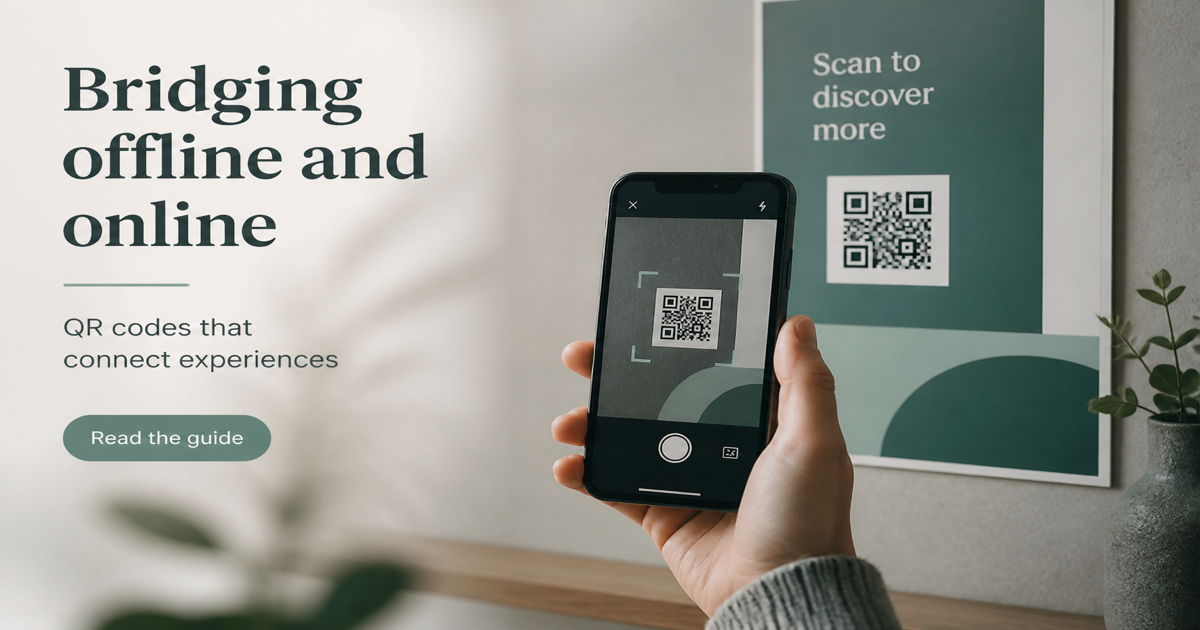
Scanning a QR code is straightforward on modern smartphones: open the camera app, point it at the code, and tap the notification banner that appears. No dedicated scanner app is required on most iOS and Android devices released in the last several years. For testing codes you generate, use our online QR scanner or the same camera workflow your audience will use.
Why it matters
Understanding the scan experience helps you design codes that work in real conditions—not just on a desktop monitor. Users scan under varied lighting, at different angles, and sometimes while moving. A code that decodes in perfect office lighting may fail on a dim restaurant table or a sunlit storefront window. Testing under realistic conditions before launch prevents support tickets and lost conversions.
How to apply it
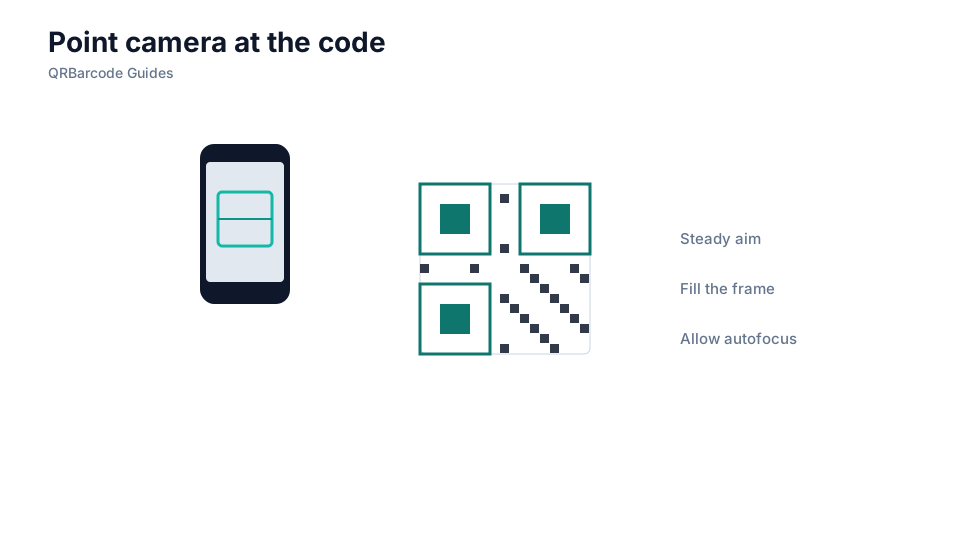
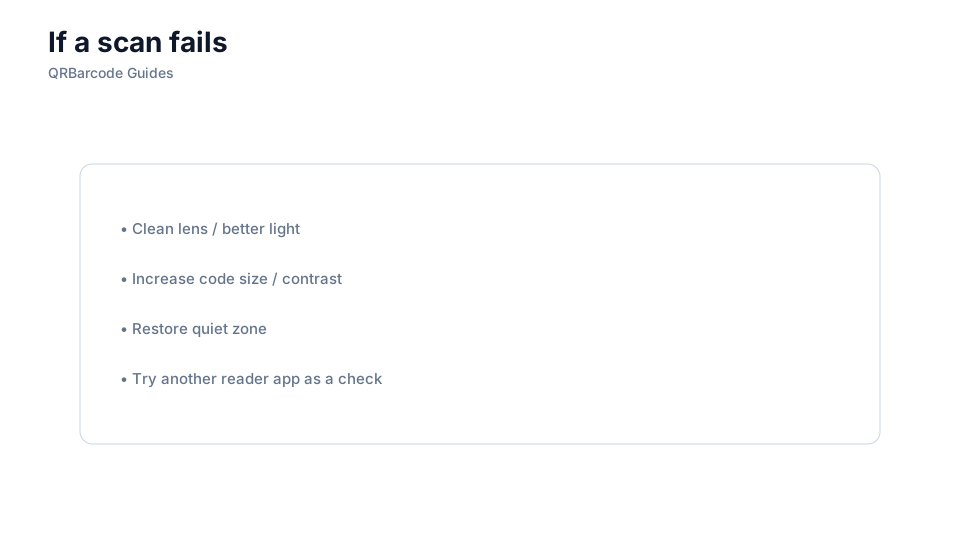
Generate a test code in the URL QR tool, print it at production size, and scan it with both iPhone and Android cameras under indoor, outdoor, and low-light conditions. If scans fail, check size, error correction, and contrast before blaming the user's phone.
- On iPhone: open Camera, point at the code, tap the yellow notification banner to open the link.
- On Android: open Camera or Google Lens, point at the code, and tap the suggested action.
- Hold the phone steady, 15–30 cm from the code, with the symbol filling about one-third of the frame.
- Ensure adequate lighting—avoid heavy glare on glossy surfaces and shadows across the code.
- If the camera does not detect the code, move closer or check that the code is not damaged or too small.
Common mistakes
Telling users to download a specific scanner app creates unnecessary friction—most phones handle QR natively. Another mistake is placing codes where physical scanning is awkward: behind reflective glass, near floor level, or on moving objects. Assuming all age groups scan equally fluently also overlooks users who need clearer instructions or larger codes.
Recommended tools
Create test codes in the QR Code Generator, verify decode behavior in the QR Code Scan tool, and optimize physical placement using size guidelines and printing tips.