
QR Code Error Correction Levels
Levels L, M, Q, and H trade capacity for resilience against damage or logo overlays.
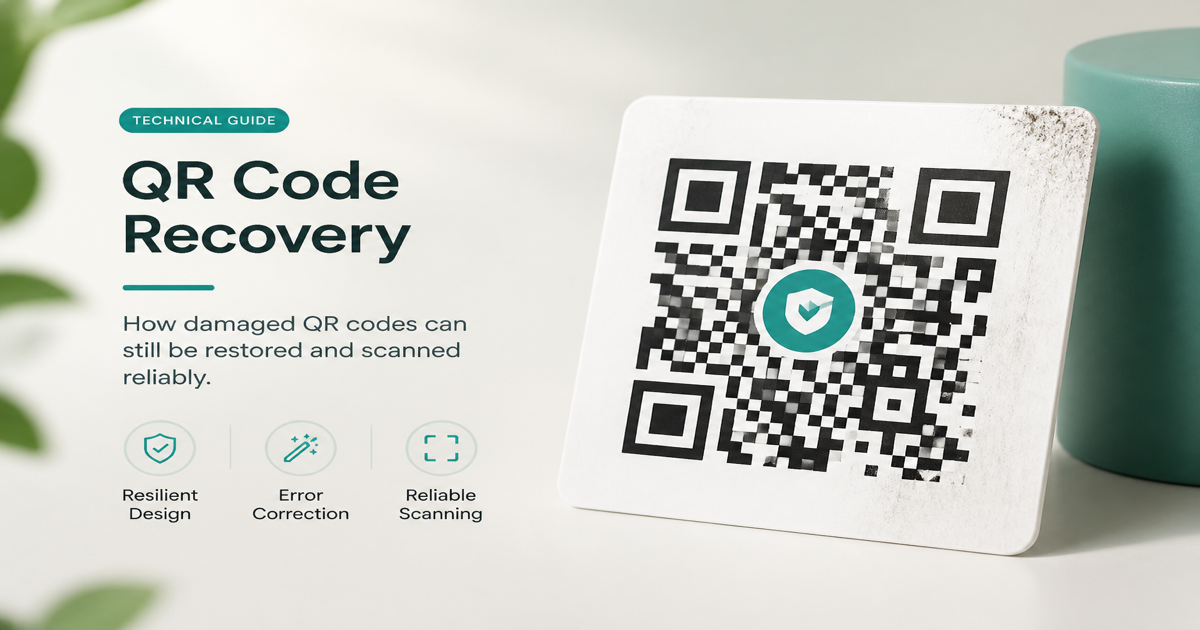
QR codes support four error correction levels—L, M, Q, and H—that control how much redundant data is added to the matrix. Higher levels recover from more damaged or obscured modules but reduce the amount of payload data you can store. Choosing the right level balances scan reliability against data capacity and visual density.
Why it matters
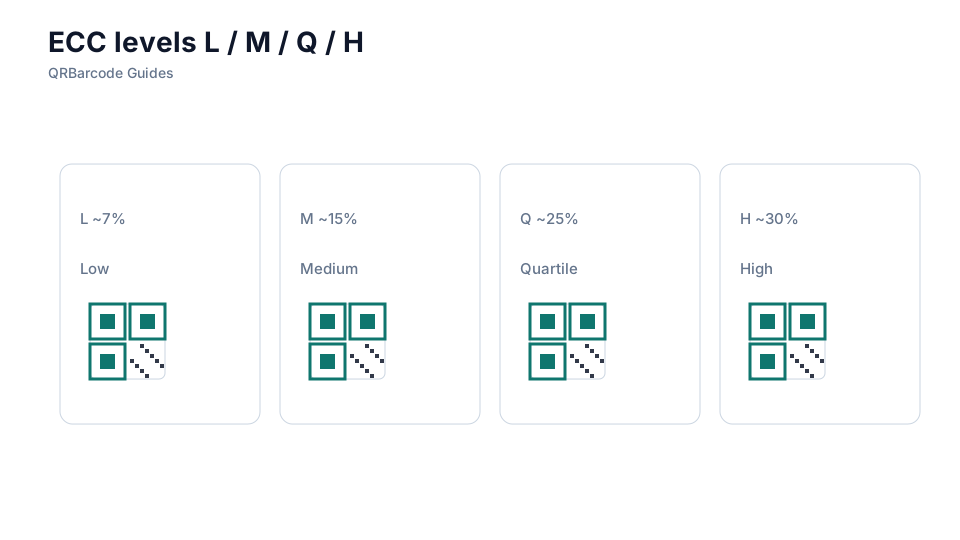
Error correction matters most when you plan to overlay a logo, print on rough stock, or expose codes to outdoor weather. Level L recovers roughly 7% of damaged codewords; M about 15%; Q about 25%; and H about 30%. Most marketing codes use M as a default, but branded codes with center logos often need Q or H to stay readable.
How to apply it
Generate a test URL in the URL QR tool at level M, scan it cleanly, then regenerate at level H with the same URL and compare how much denser the matrix becomes. If you add a logo, bump correction up one level and re-test in the QR scanner. Cross-check physical size against size guidelines so modules remain large enough to read.
- Use level L or M for clean digital displays with no logo overlay and short URLs.
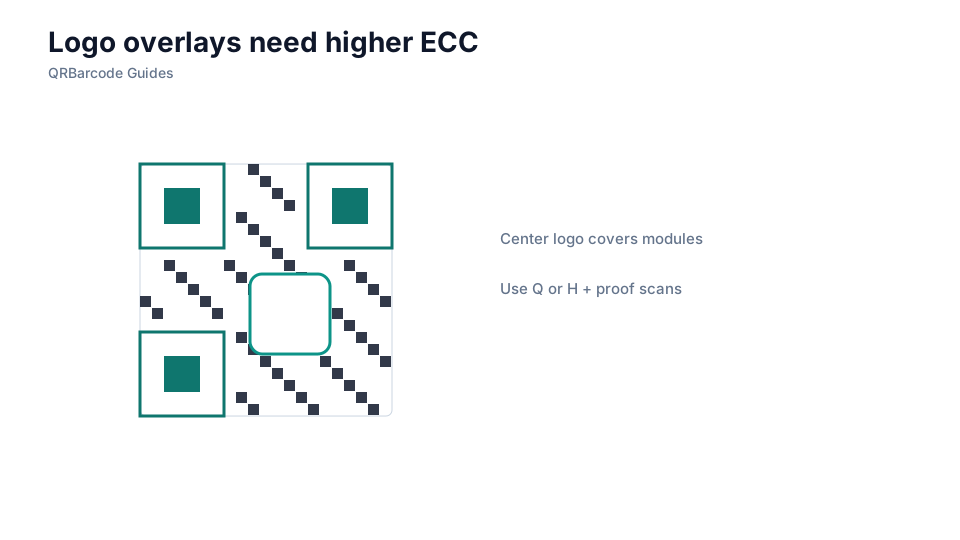
- Use level Q or H when placing a logo in the center or printing on textured, curved, or outdoor surfaces.
- Accept that higher correction makes the code denser—compensate by shortening the URL or increasing physical size.
- Never cover finder patterns or timing patterns, regardless of error correction level.
- Always scan-test after adding branding elements, not just before.
Common mistakes
Setting error correction to H for every code is wasteful—it shrinks payload capacity and increases module density without benefit on a clean digital banner. The opposite mistake is keeping level L while placing a large logo over the center, which destroys more modules than low correction can recover. Assuming error correction fixes bad contrast or missing quiet zones is also wrong; it only helps with partial physical damage.
Recommended tools
Create and compare codes in the QR Code Generator, validate each version in the QR Code Scan tool, and read QR code size alongside printing QR codes when preparing branded materials for production.