
UPC-E Explained
UPC-E compresses certain UPC-A numbers for tight packaging faces.
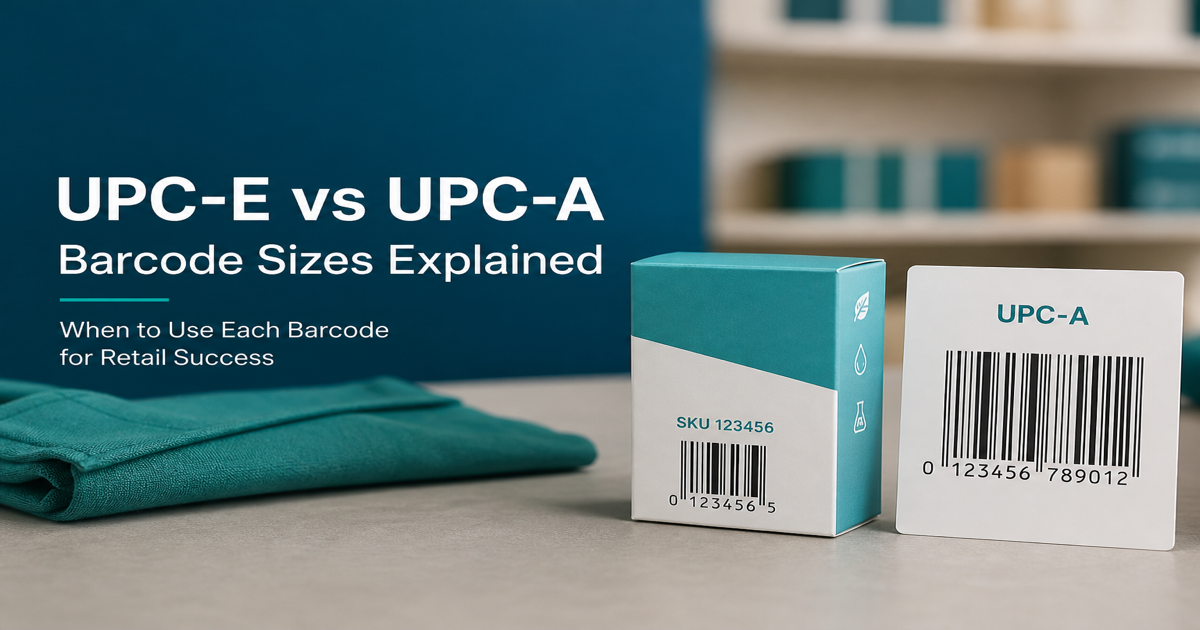
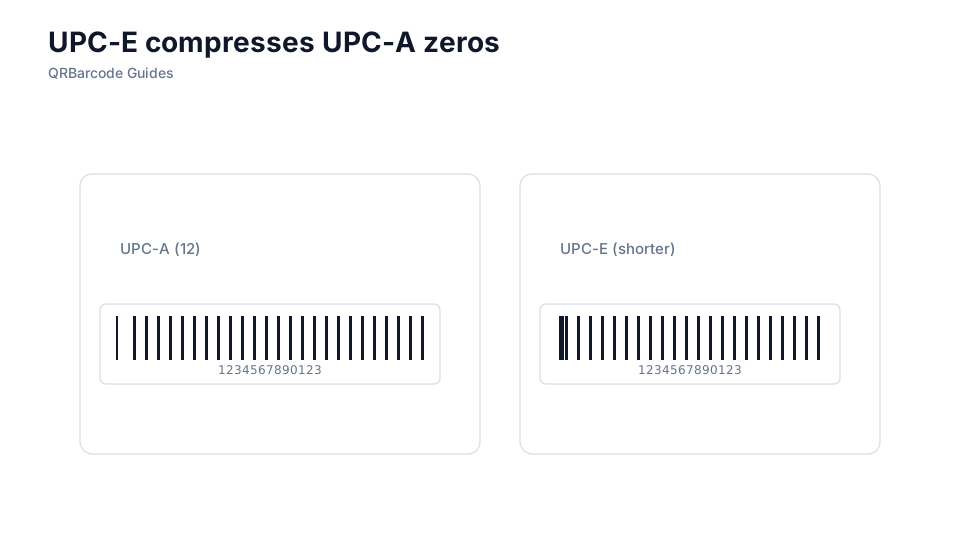
UPC-E compresses select UPC-A numbers into a shorter symbol for tight packaging—think small cosmetics, candy, and trial sizes. The bars look different, but POS still resolves the full GTIN. Build compressed symbols with the UPC-E generator and compare against full UPC-A in the barcode scanner.
Why it matters
Not every UPC-A can become UPC-E. Zero suppression rules define which manufacturer and product combinations qualify. When they do, UPC-E saves horizontal space while scanners expand the payload back to UPC-A for inventory systems. Using UPC-E where the data pattern is ineligible produces symbols stores cannot price. Read EAN vs UPC and check digits to keep catalog numbers aligned across formats.
How to apply it
Confirm eligibility in your master data, generate UPC-E only when the GTIN qualifies, and store the expanded UPC-A in ERP as the canonical identifier.
- Validate zero-suppression rules before artwork—do not manually truncate a UPC-A and hope POS accepts it.
- Keep human-readable numbers on the pack consistent with what your retailer’s database expects after expansion.
- Size the symbol for the smallest allowed magnification on the narrowest panel you will print.
- Proof on retail laser scanners, not only phone apps, before a limited pack face goes to mass production.
Common mistakes
Packaging teams sometimes force UPC-E for design reasons when the GTIN is not eligible, or they mismatch check digits between compressed and expanded forms. Another error is listing UPC-E in vendor portals while warehouses receive cases labeled with ITF-14 GTINs. Trace identifiers in GS1 basics and barcode size if partners reject files.

Recommended tools
Open the UPC-E tool for eligible SKUs, the UPC-A generator for full-width symbols, and verify both in Barcode Scan.