
Barcode Size Guidelines
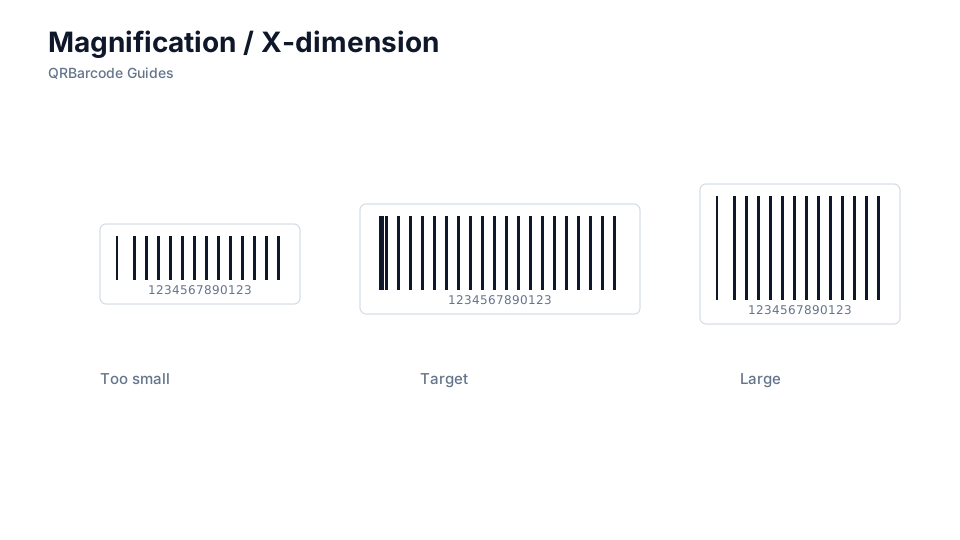
X-dimension (narrow bar width) and height drive scan reliability.
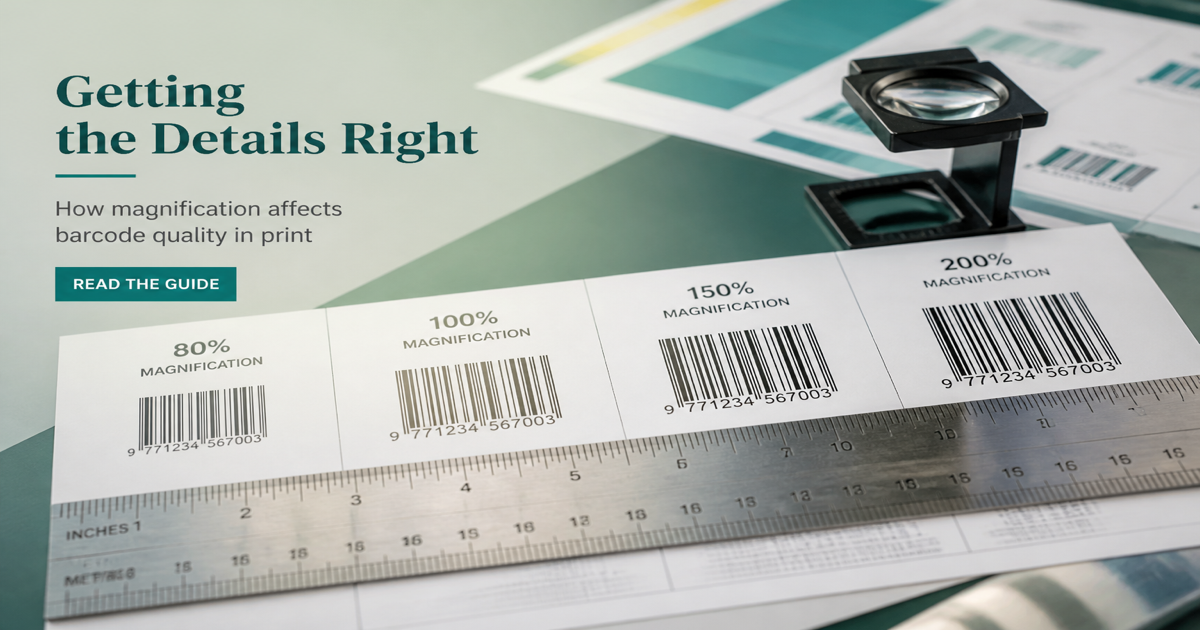
Barcode size is controlled mainly by X-dimension—the width of the narrowest bar or cell—and by overall symbol height. GS1 publishes magnification ranges so laser scanners at checkout and imagers at the dock can decode reliably. Generate scalable SVG from the Barcode Generator and proof dimensions before mass printing with Barcode Scan.
Why it matters
Undersized barcodes are the silent killer of scan rate. Marketing shrinks the symbol to highlight brand color; converters stretch artwork to fit a die line; thermal printers clog and spread ink until narrow bars merge. Each scenario passes visual QC yet fails the first busy Saturday shift. Size is not aesthetic—it is a mechanical tolerance for light sensors.
How to apply it
Ask your label vendor for target X-dimension in mils or millimeters, then export artwork at 100% scale—never “fit to box” in design software. Retail GTIN symbols need height plus quiet zones; logistics Code 128 needs width for data length at chosen magnification. Align print specs with printing barcodes and validate placement on curved packs using how to scan techniques.
- Specify X-dimension and bar height on label drawings, not just overall label size.
- Use vector SVG masters so narrow bars stay crisp when plates or ribbons wear.
- Increase magnification when printing on rough substrates like corrugated or fabric tags.
- Test worst-case packages—the smallest sellable unit and the glossiest film laminate.
Common mistakes
Scaling a barcode uniformly in Canva or Word without respecting minimum X-dimension is the classic failure mode. Another is printing full-size on flat proof sheets but shrinking on curved bottles without retesting. If scans fail at distance, enlarge the symbol before tweaking scanner settings.
Recommended tools
Build correctly sized symbols in the Barcode Generator, compare EAN-13 retail sizing with Code 128 logistics labels, and verify with Barcode Scan.