
WiFi QR Codes Explained
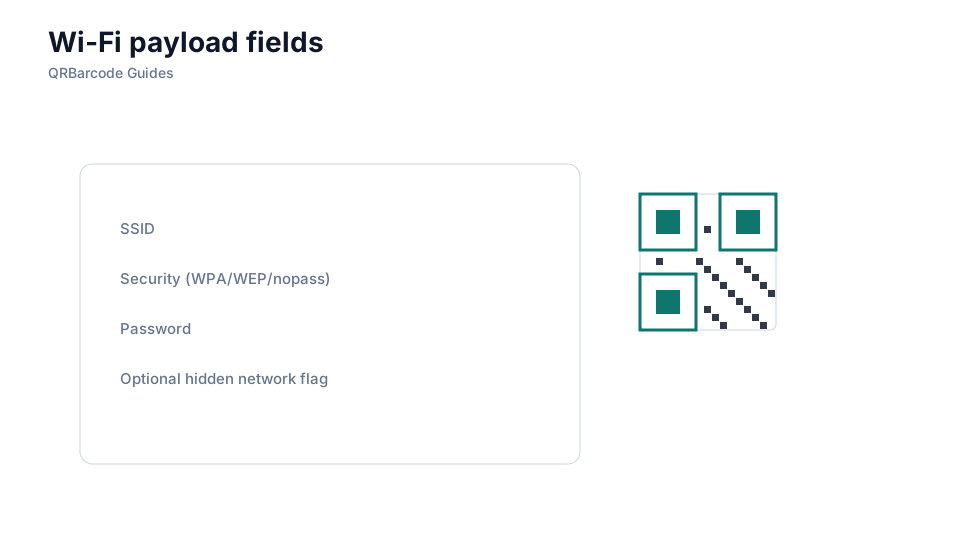
WiFi QRs encode SSID, encryption, and password so guests join without typing.
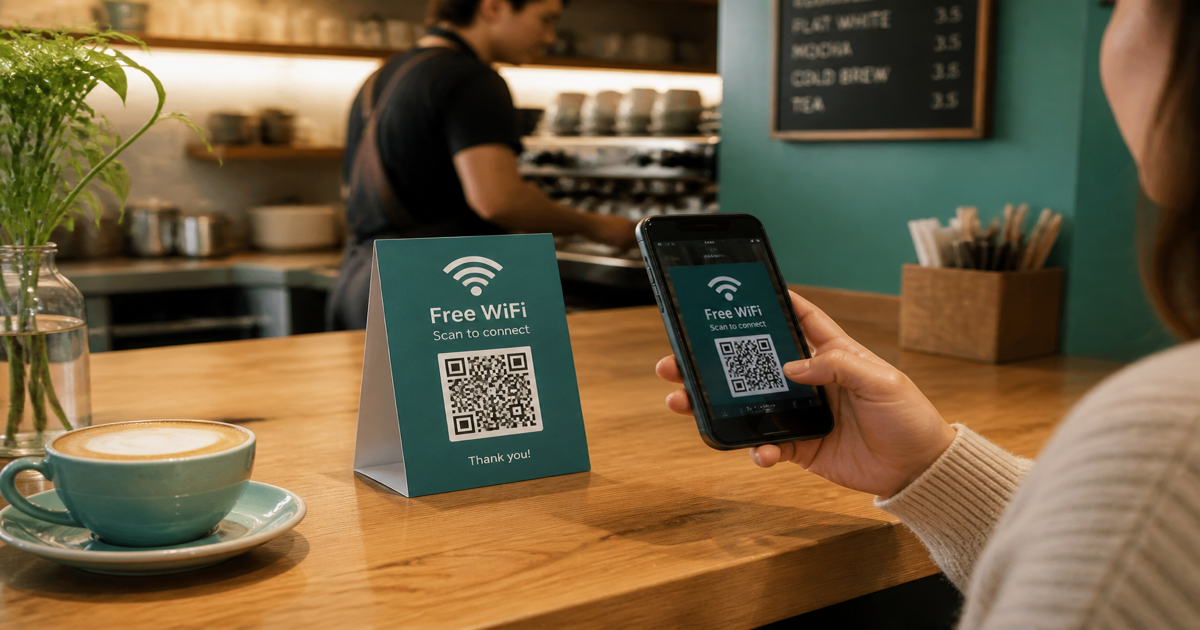
WiFi QR codes encode network name, encryption type, and password so guests join your network without typing credentials. Android and iOS cameras recognize the WIFI: payload format and prompt users to connect in one tap. Create codes in the WiFi QR generator and verify connectivity with the QR scanner on both platforms before laminating a lobby sign.
Why it matters
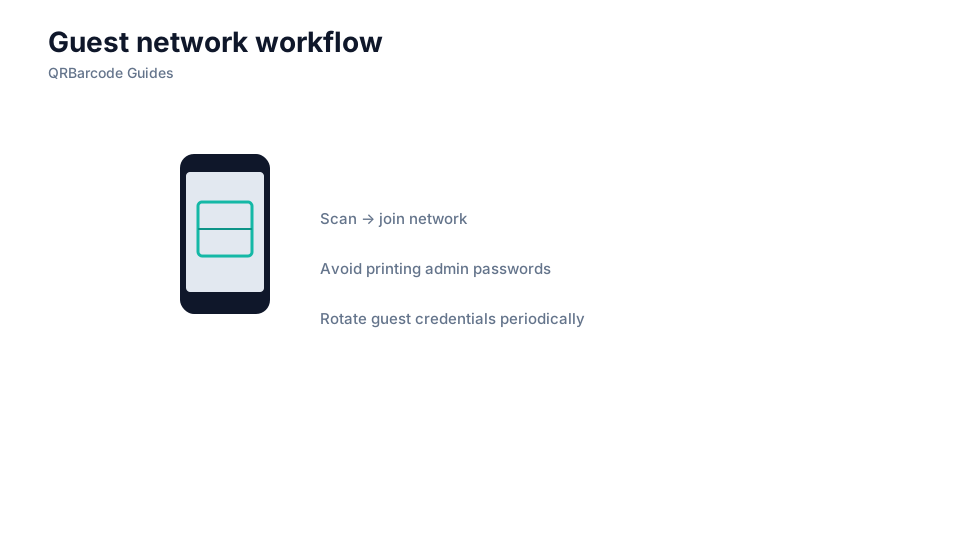
Shared passwords on printed signs are convenient but carry security trade-offs — anyone who can photograph the code gets network access. Rotate guest credentials on a schedule and replace signage when passwords change. For broader safety context, read QR security basics and how to scan a QR code so staff can help visitors who struggle on older phones.
How to apply it
Use a dedicated guest SSID rather than your primary corporate network, choose WPA/WPA2 as supported by your router, and print the code large enough for lobby distance scanning.
- Separate guest WiFi from internal VLANs so a scanned code never exposes admin systems.
- Reprint signage whenever the password rotates — static codes embed the old secret until replaced.
- Place signs at eye level with good lighting; avoid glossy lamination that adds glare in lobbies.
Common mistakes
Publishing a QR for your main office SSID, using hidden-network formats some phones ignore, and forgetting to update printed codes after router changes are common mistakes. Never post production network credentials in public-facing outdoor signage without understanding who can capture the code.
Recommended tools
Open the WiFi QR tool, enter SSID and password, export PNG for digital displays or SVG for print shops, and test joins on iPhone and Android in the QR Code Scan flow.