
vCard QR Codes Best Practices
vCard QRs let prospects save name, phone, email, and company in one scan.
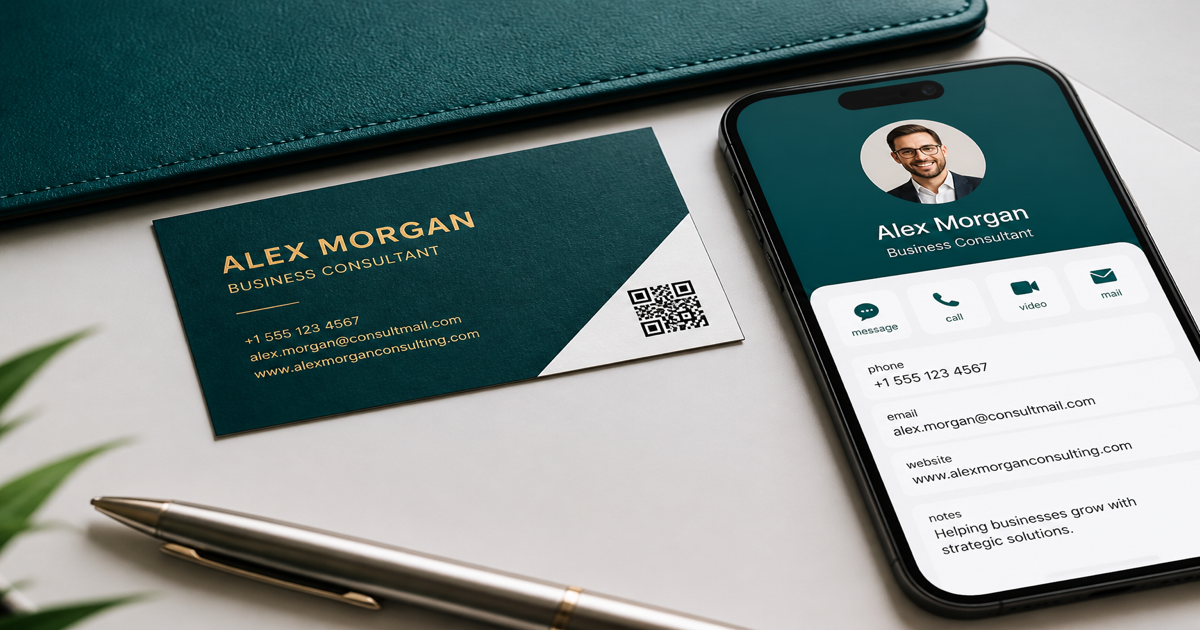
vCard QR codes pack contact details — name, phone, email, company, and title — into a scannable pattern prospects can save in one step. They are ideal for business cards, event badges, and booth handouts where typing URLs or numbers adds friction. Build yours in the vCard QR generator and test saves on the QR scanner before the print deadline.
Why it matters
Every extra field increases module density, which makes small-format cards harder to scan. Sales teams often overload vCards with long titles, multiple phones, and social links, then wonder why the code fails on a 2 cm square. Trim fields aggressively and read QR size guidelines plus testing before print for card-sized placements.
How to apply it
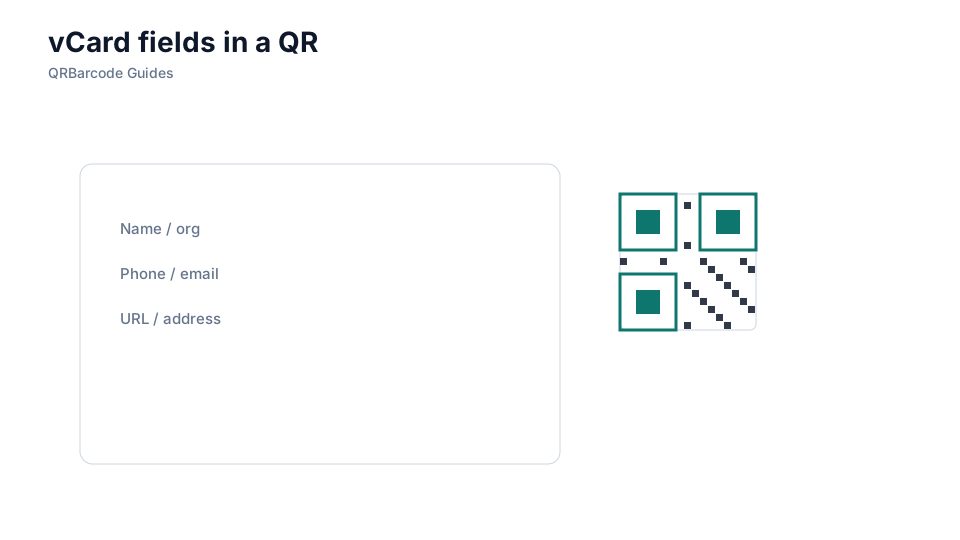
Include only what a new contact truly needs: name, one phone, one email, company, and a short title. Skip fax numbers, long addresses, and redundant URLs unless the card is large enough to carry a dense matrix.
- Keep display names and job titles concise — abbreviations reduce payload length without losing meaning.
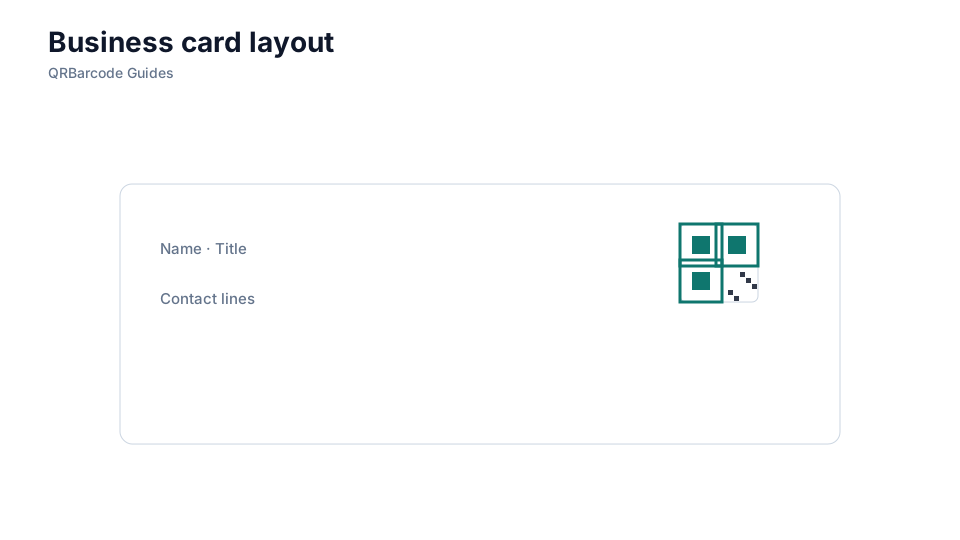
- Print the QR at least 2 cm square on standard cards; smaller codes need shorter vCard data.
- Scan proofs on both iOS Contacts import and Android save flows — behavior differs slightly.
Common mistakes
Crowded vCards, logos that shrink usable module area, and low-contrast foil stamping on dark stock are frequent failures at conferences. If you need a rich profile, point the QR to a short URL landing page instead of encoding everything statically. Cross-check logo placement if branding overlaps the matrix.
Recommended tools
Use the vCard QR tool to export print-ready SVG, pair with minimal fields, and confirm contact imports via the QR Code Scan tool on the phones your prospects carry.