
SVG vs PNG for QR Codes
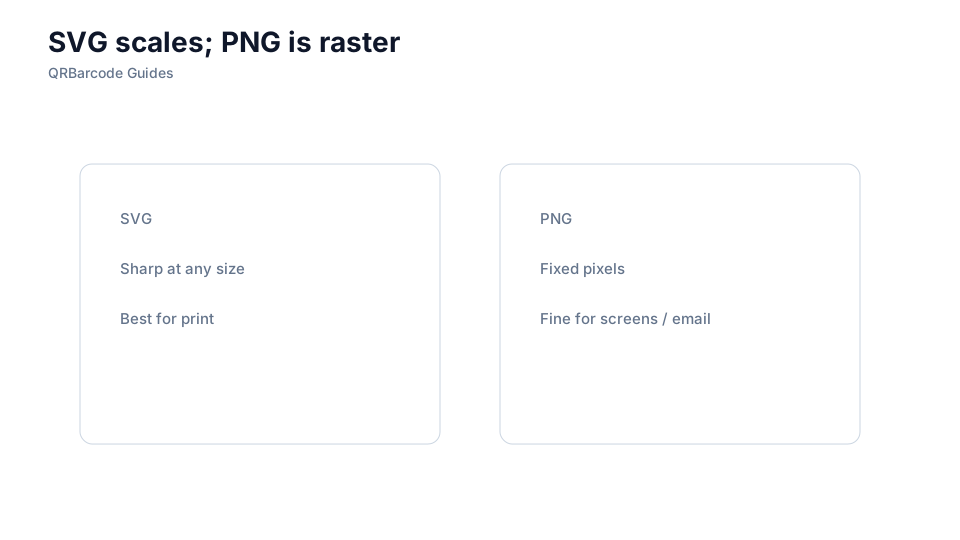
SVG scales cleanly for print; PNG is convenient for web and email.
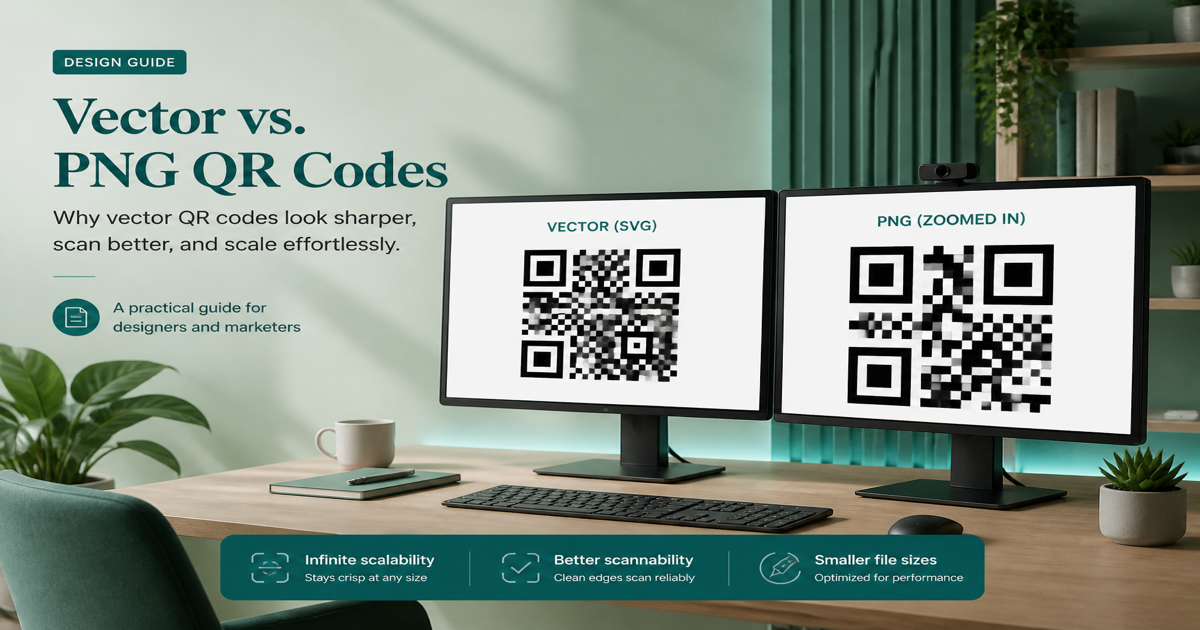
SVG (Scalable Vector Graphics) and PNG (Portable Network Graphics) are the two most common export formats for QR codes. SVG stores the code as mathematical paths—each module is a crisp shape that scales infinitely without losing edge definition. PNG stores a fixed-resolution bitmap, which is simpler for web and email but can blur if resized after export.
Why it matters
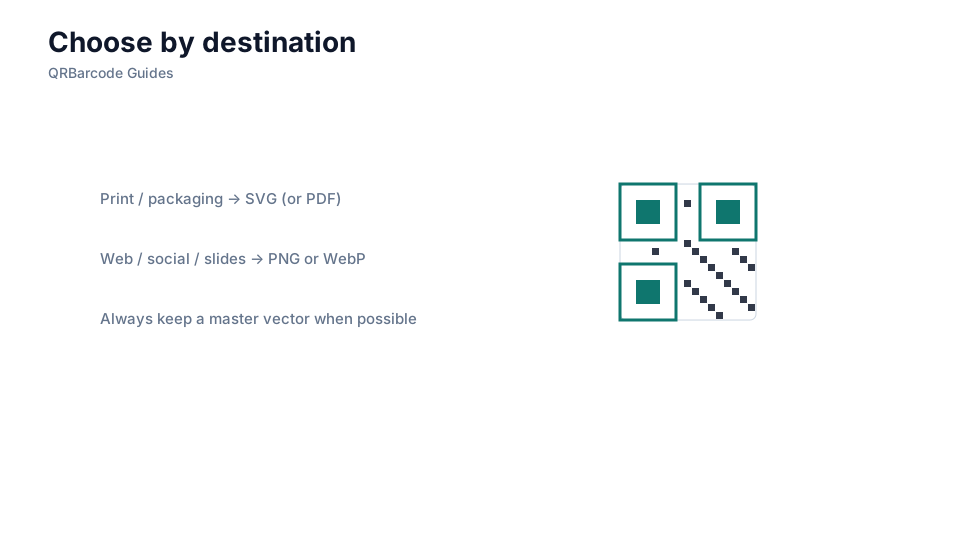
Format choice depends on where the code is going. Print vendors, sign shops, and packaging designers almost always prefer SVG or PDF because module edges must remain sharp at the final physical size. Web pages, social media posts, and slide decks often use PNG because support is universal and file sizes are small. Using the wrong format is a common reason codes scan on screen but fail in print.
How to apply it
For print projects, export SVG from the QR code generator and hand it to your vendor without rasterizing it first. For digital placements, export PNG at 2× the display size for retina screens. Test both formats in the QR scanner after any resize. Read printing QR codes for prepress requirements.
- Choose SVG for commercial print, large-format signage, and any workflow that scales the code.
- Choose PNG for websites, email signatures, presentations, and social media posts.
- Never upscale a PNG after export—regenerate at the target resolution instead.
- Confirm your layout software handles SVG imports correctly before committing to the format.
- Keep a master SVG archive even if you deploy PNGs digitally, so reprints stay sharp.
Common mistakes
Embedding a tiny PNG in InDesign and scaling it to billboard size destroys module edges—always provide vector art for large-format work. Conversely, uploading a multi-megabyte SVG to an email signature when a small PNG would suffice adds unnecessary complexity. Converting SVG to PNG at too low a resolution before print is another mistake that looks fine in layout but fails on press.
Recommended tools
Export from the QR Code Generator in the format that matches your channel, validate with the QR Code Scan tool, and follow printing guidelines or size guidelines depending on whether the code is headed to press or screen.